Search and Find
Mini-Booklets
These Mini-Booklets are very popular. Each document prints four booklets.
If you want to include your own contact information, you can use sejda.com/pdf-editor to edit.
The pdfs below are formated for US-Letter (8.5×11″) If you want to change them to A4 size, you can use docupub.com/pdfresize. (Select A4, Landscape, and uncheck “Constrain proportions when scaling”)
To print: Select landscape and flip on short side. No scaling.
| Meditation | ||||
| Metta Bhavana | Letter PDF | Letter docx | A4 PDF | A4 doc |
| Body Parts | Letter PDF | Letter docx | ||
| Cemetary | Letter PDF | |||
| Impermanence | Letter PDF | |||
| Buddhanussati | Letter PDF | |||
| Six recollections | Letter PDF | |||
| Chanting | ||||
| Vandana | Letter PDF | |||
| Suttas | ||||
| TunSutra | Letter PDF | |||
| Removing Resentments | Letter PDF | |||
| Dhp, Ven. Buddharakkhita | Letter PDF | |||
| SaccaVibhanga | Letter PDF | |||
| 5 Themes for frequent recollection | Letter PDF |
These booklets were created using this software: pdfbooklet.sourceforge.net/
Make new booklets
You can easily make your own booklets if you follow these steps exactly.
- Decide the size of paper, either Letter (USA and Canada) or A4.
- Create a new document and change the page size to the final page size of the finished booklet:
| Paper Size | Width | Height |
| Letter | 2.75 inches | 4.25 inches |
| A4 | 74 mm | 105 mm |
Your final booklet needs to be multiples of four pages, e.g. 4, 8, 12, 16 etc.
- On the back page, add a thin, grey line at the very edge of the right and bottom edge so you have a line to cut on:
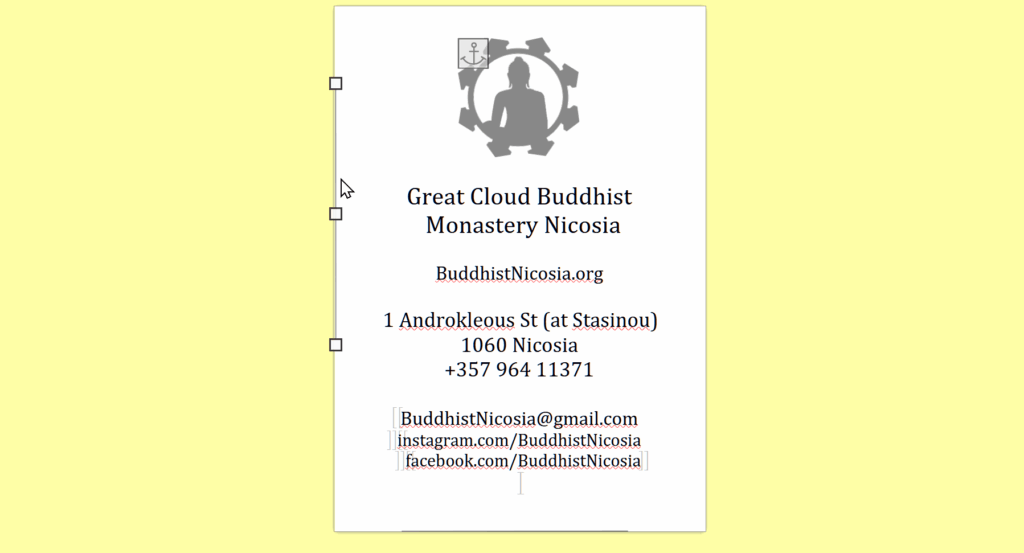
Then they appear like this in the final version:
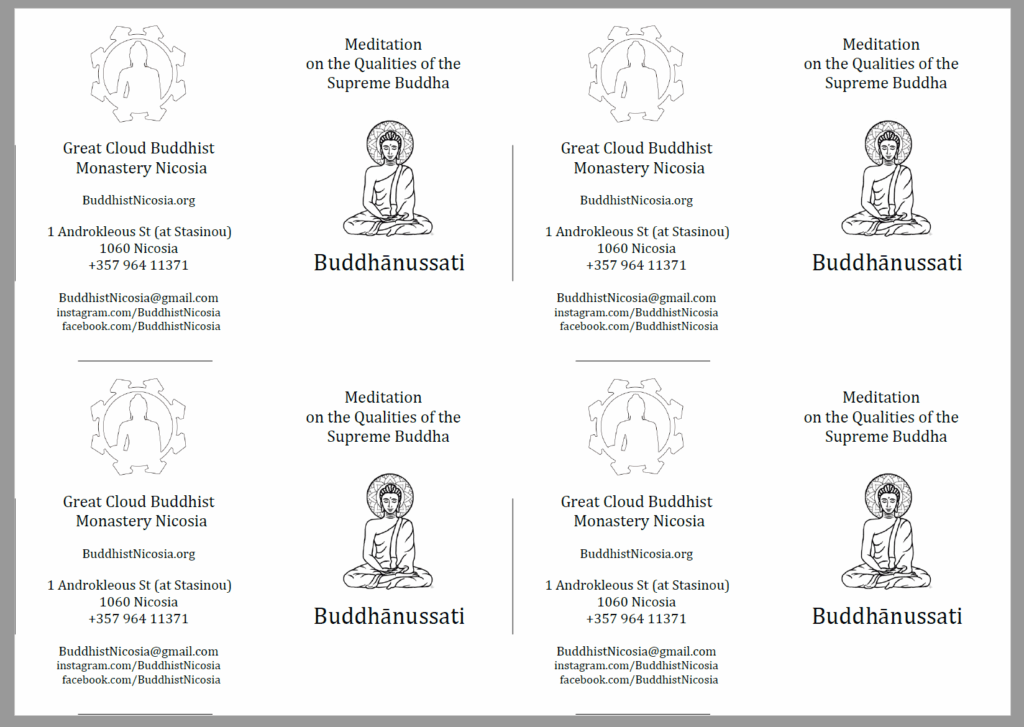
- Save your finished document as a PDF.
- Install the PDF Booklet software if you haven’t already. (Unfortunately it only runs on Windows and Linux. For Mac, you can Google ways to load Linux software on a Mac)
- You may need to wait a few minutes for the software to load.
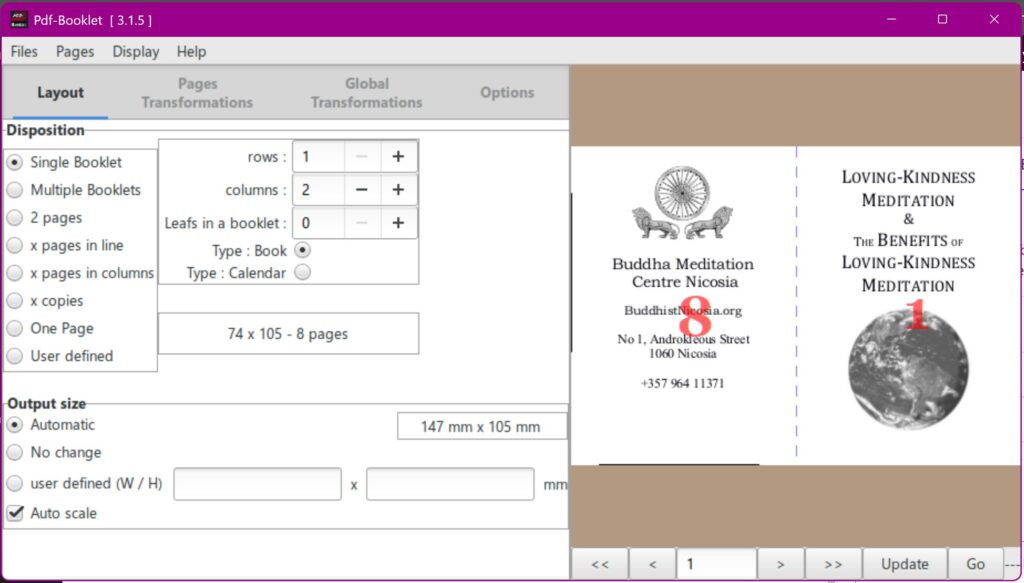
- When it does, go to Files > Files and pick your PDF. When it loads it will look like this:
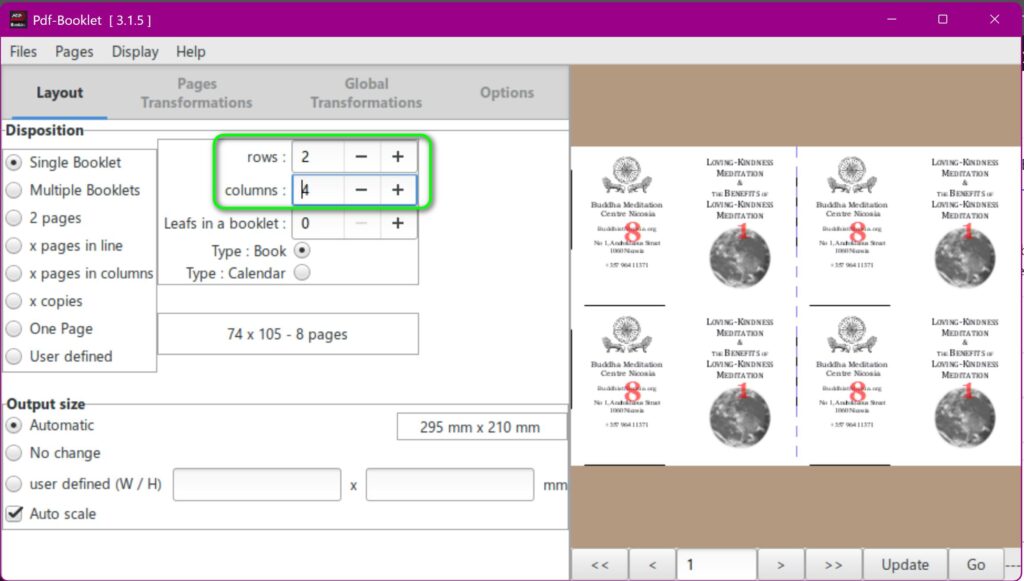
- Change the rows and columns to 2 and 4:
- If it looks good, click “Go” in the bottom right corner. This should save the booklet version.
- Please see printing instructions above.